Zotero 8 Launches with Redesigned Citation Dialog, Enhanced Annotations, and Expanded Platform Support

Zotero, the widely-used open-source reference management software, has officially released its latest major update, Zotero 8. This significant release builds upon the foundational redesign introduced in Zotero 7, bringing a host of substantial improvements and refinements aimed at streamlining academic research workflows. Key among the new features is a completely revamped citation dialog, improved annotation management, enhanced reader functionality, and expanded compatibility with ARM-based Linux systems. The update signifies Zotero’s continued commitment to providing researchers with robust and intuitive tools for organizing, citing, and sharing their scholarly work.
The development of Zotero 8 represents a significant milestone in the software’s evolution, following the successful integration of a new design language in Zotero 7. This latest iteration focuses on enhancing user experience and efficiency, particularly in the critical stages of citation insertion and annotation review. The release also underscores Zotero’s proactive approach to technological advancements, with the introduction of ARM Linux support addressing a growing segment of computing hardware.
A Unified and Intelligent Citation Dialog
One of the most prominent changes in Zotero 8 is the introduction of a completely redesigned citation dialog. This new interface replaces the disparate "red bar," "classic" dialog, and "yellow bar" (Add Note) dialogs with a single, unified tool. This consolidation aims to reduce user friction and streamline the process of inserting citations and notes into documents.
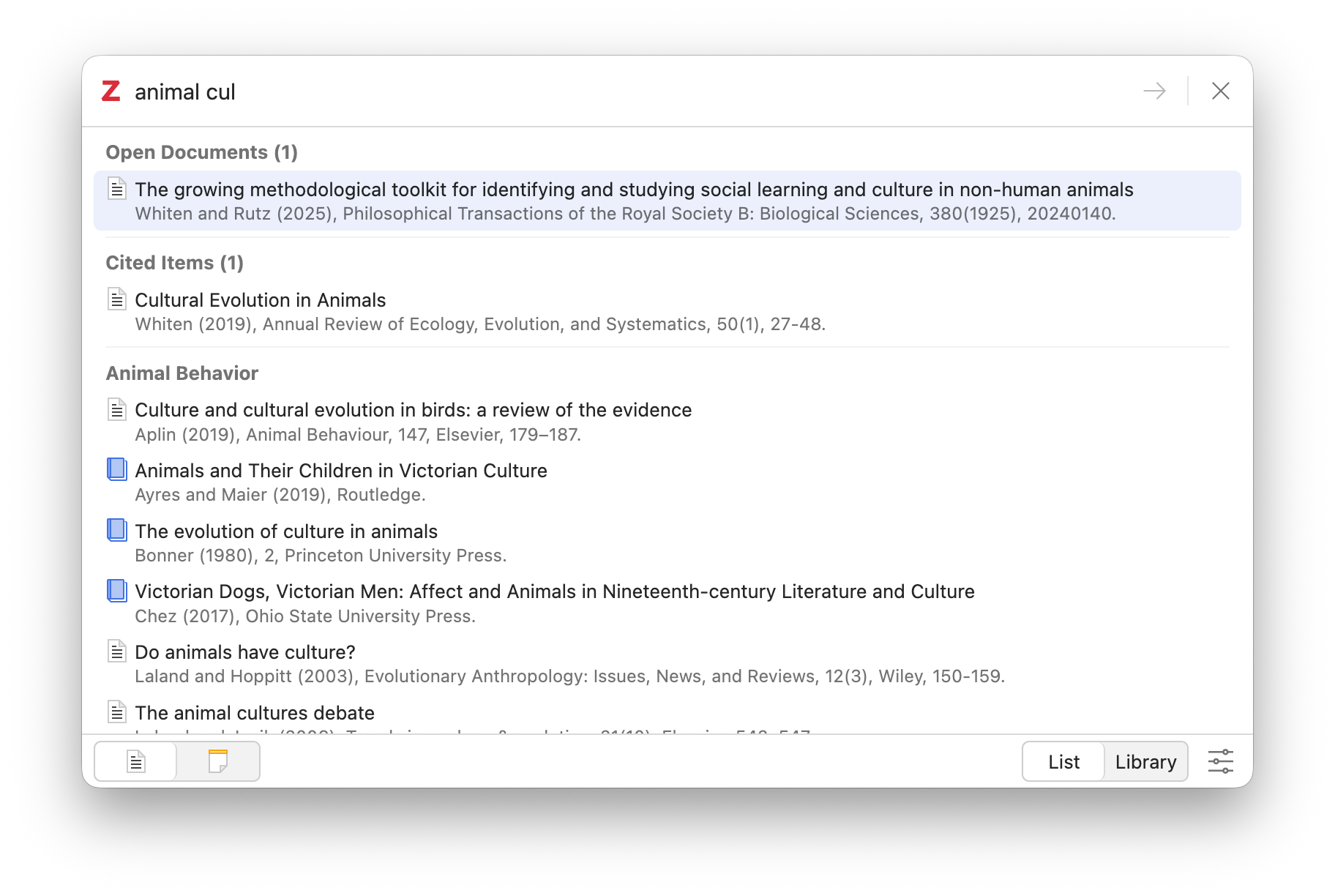
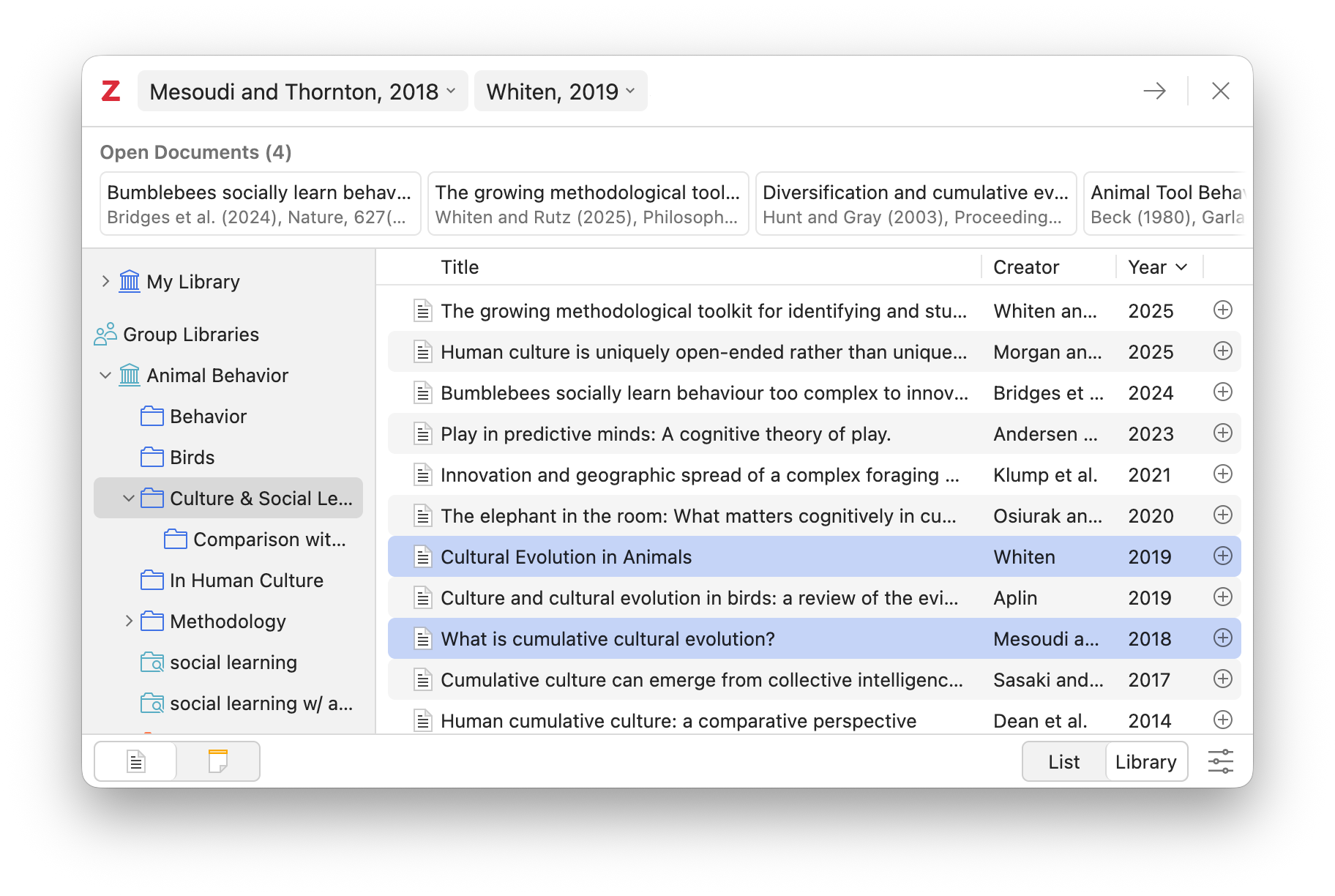
The redesigned dialog offers two distinct modes: List mode and Library mode. List mode provides a swift search functionality, allowing users to quickly locate citations across their entire Zotero library based on title, creator, and year. This mode is designed for rapid access to frequently used references. In contrast, Library mode incorporates a full library browser, enabling users to navigate and select items from specific libraries or collections. The ability to seamlessly switch between these two modes with a single click, while preserving any entered search terms or selected items, enhances flexibility. Users can also configure their preferred default mode in the Zotero settings.
Building on the quick citation functionality introduced in Zotero 7, which allowed for rapid insertion of selected items and open documents, these capabilities are now integrated into both List and Library modes within the new dialog. This ensures that users can leverage these efficiency features regardless of their preferred citation workflow.
Customization of citations remains a core function, accessible by clicking on a selected item’s bubble within the dialog. This allows for the addition of page numbers, prefixes, and other citation modifiers. Zotero 8 further refines this by enabling the direct entry of any locator—not just page numbers—from the search bar. Users can now type the full or abbreviated locator name (e.g., "line 10" or "l. 10") after the citation and press Enter to apply it.
The integration of note-taking is also streamlined. Buttons at the bottom left of the dialog allow users to switch between adding citations and adding notes, mirroring the "Add/Edit Citation" and "Add Note" buttons found within word processor plugins.
For users accustomed to the classic dialog, it’s important to note the absence of a direct text field for manual citation edits. This change reflects Zotero’s long-standing recommendation to avoid manual citation modifications directly within the document. Instead, users are encouraged to customize citations through the dialog itself, ensuring that Zotero can dynamically update them as needed. This approach is crucial for maintaining the integrity and updatability of bibliographies throughout the research process.
Enhanced Annotation Management and Accessibility
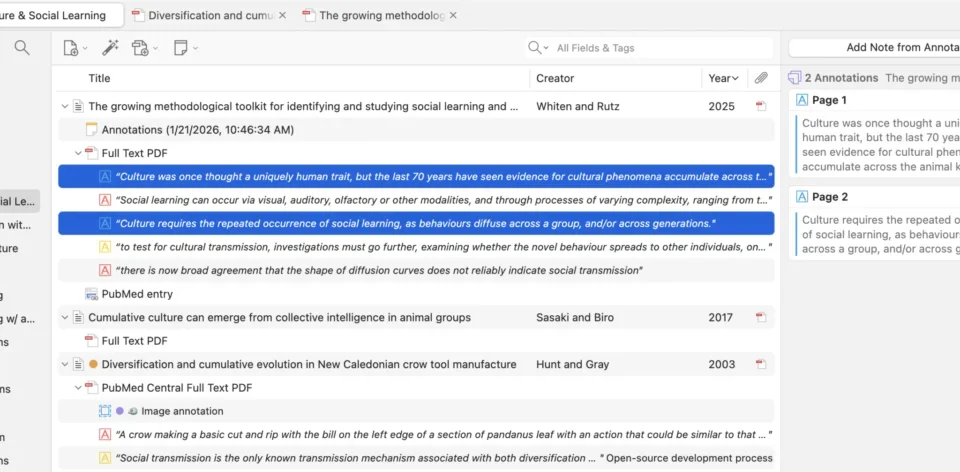
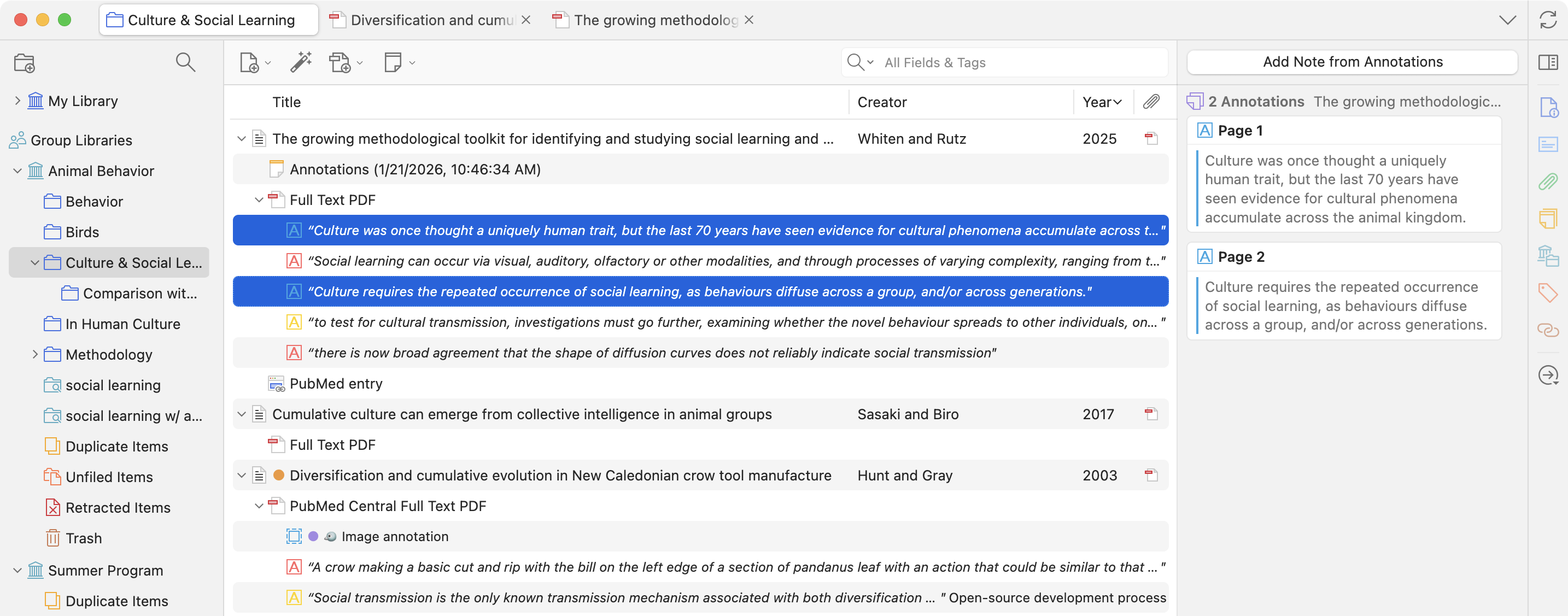
Zotero 8 introduces a significant enhancement to annotation management by displaying annotations made on PDFs, EPUBs, and webpage snapshots directly beneath their parent attachments within the items list. This visual integration makes it considerably easier for researchers to review and manage annotations across their entire library or within specific collections.
The ability to see annotations directly in the items list opens up new avenues for efficient research. Users can now search for annotations based on specific tags, enabling them to quickly gather relevant insights from multiple sources. Furthermore, these annotations can be easily converted into notes or copied to external text editors using the Quick Copy functionality, facilitating the synthesis of research material.
The Advanced Search feature has also been updated to include specific conditions for annotations. Researchers can now use "Item Type is Annotation" to match annotations, or employ "Annotation Text" and "Annotation Comment" to pinpoint specific content within their annotations. Assigning tags to selected annotations is now as intuitive as with other library items, with users able to drag and drop them onto the tag selector. Selected annotations are displayed in the item pane, logically grouped by their parent item.
Reader Appearance Panel and Theme Support
A new Appearance panel has been added to the Zotero reader, providing users with quick access to view settings and introducing support for reader themes. This panel offers a more intuitive way to adjust how documents are displayed within Zotero.
The view settings within the Appearance panel are document-specific, allowing for tailored adjustments to individual files. Reader themes, however, are applied globally across all document types, including PDFs, EPUBs, and webpage snapshots, and also affect the attachment preview within the item pane. This consistent theming ensures a cohesive reading experience.
Zotero 8 includes a selection of built-in themes, such as "Dark," "Snow," and "Sepia," offering users immediate alternatives to the default appearance. The software also facilitates the creation of custom themes by allowing users to specify foreground and background colors. Zotero intelligently adjusts other color elements to ensure readability and aesthetic harmony. The ability to set distinct themes for light and dark modes further enhances user customization.
The introduction of themes replaces the previous "Use Dark Mode for Content" option, which had a tendency to invert images. The new approach applies a subtle darkening effect to images within dark themes, preserving more natural visual representation. Image and ink annotations in the reader sidebar and note editor are also now subject to this darkening effect, but only when Zotero itself is operating in dark mode. For scanned documents or PDF pages dominated by full-page images, Zotero attempts to apply themes by replacing whitish or dark colors with the selected theme’s palette, providing a more integrated viewing experience.
Streamlined Note-Taking with Note Tabs
Zotero 8 introduces the capability to open notes in tabs within the main Zotero window, in addition to the traditional separate windows. This feature aims to improve organization and reduce window clutter, especially for users who frequently work with multiple notes.
By default, double-clicking a note in the items list will now open it in a tab. Users can opt to open notes in separate windows via the context menu, and the default behavior can be modified in the General pane of Zotero’s settings. Notes displayed in tabs offer a dedicated font size setting accessible through the View menu, further enhancing readability and customization.
Reading Mode for Webpage Snapshots
The Zotero reader now features a Reading Mode specifically for webpage snapshots. This mode intelligently reformats web content, stripping away unnecessary page elements and optimizing for easier reading. Users can further refine the reading experience by adjusting line height and other view options via the Appearance panel.
Accelerated Tab Management
Interactions with Zotero’s tabs menu have been significantly improved to enhance keyboard accessibility and speed. Users can now summon the tabs menu at any time by pressing Ctrl/Cmd-;. Once open, the menu functions as a dynamic interface that simultaneously accepts search input, up/down navigation, and row selection. This eliminates the need to navigate between different parts of the menu. Users can begin typing the name of a tab to filter the list and press Enter to switch to the desired tab. The ability to quickly close multiple tabs has also been streamlined; users can navigate between row close buttons using the up/down arrow keys and press the spacebar to close a tab.
Continuous File Renaming for Attachments
A significant workflow improvement in Zotero 8 is the introduction of continuous file renaming for attachments. The software now automatically synchronizes attachment filenames with the metadata of their parent items as changes are made, such as editing a title. Previously, while Zotero would rename files upon initial import, subsequent metadata edits required a manual "Rename File from Parent Metadata" action.
This automatic renaming can be configured to apply to specific file types through the Zotero settings. Upon upgrading, existing files that do not conform to the current filename format will not be automatically renamed. However, users can initiate a bulk renaming process from the Zotero settings. Zotero will also prompt users to rename all files if the filename format is modified. The "Rename File from Parent Metadata" option has been removed from the item context menu. For files that do not match the configured format, a "Rename File to Match Parent Item" button is now available next to the filename in the attachment’s item pane.
Refined Attachment Title Options
Zotero 8 continues to refine the handling of attachment titles, building upon the more consistent approach introduced in Zotero 7. This ensures simpler, less redundant titles (e.g., "Full Text PDF") are preserved when titles were previously altered to match filenames. The renaming and titling logic for multiple and non-primary attachments has been improved to better align with intended functionality.
A new "Normalize Attachment Titles" option under Tools > Manage Attachments allows users to update older primary attachments whose titles match their filenames to use simpler titles like "PDF." While Zotero recommends its default behavior of automatically renaming primary files and using simpler titles in the items list, users can now opt to display attachment filenames directly in the items list by enabling the "Show attachment filenames in the items list" option in the General pane of the settings.
Expanded Platform Support: ARM Linux
Zotero 8 marks a significant expansion of the software’s platform compatibility with the introduction of a dedicated version for Linux systems running on ARM64 architecture. This includes a wide range of devices such as ARM-based Chromebooks, Apple Silicon Macs running Linux (via virtual machines or native installations like Asahi Linux), and Raspberry Pi devices. This development is expected to benefit a growing number of users who rely on ARM-based hardware for their research and computing needs, potentially eliminating the need for emulation.
User Interface and Connector Enhancements
Beyond the major feature additions, Zotero 8 incorporates numerous user interface improvements based on community feedback. These enhancements aim to create a more intuitive and efficient user experience across the application.
The Zotero Connector save popup has also received notable upgrades. It now includes tag autocompletion, allowing users to quickly select existing tags from their Zotero library. Additionally, users can now add notes to items directly within the Connector popup as they save them, further streamlining the data capture process.
A Faster Release Cycle Ahead
In conjunction with the release of Zotero 8, the Zotero development team has announced a shift in their release strategy. The organization plans to adopt a faster release cycle going forward, indicating a commitment to delivering new features and improvements to users more frequently. This change is expected to accelerate the pace of innovation and responsiveness to user needs.
System Requirements and Availability
Zotero 8 requires macOS 10.15 or later, Windows 10 or later, or a Firefox 140-compatible Linux system. Existing Zotero users can upgrade to version 8 by navigating to Help > Check for Updates within the application. New users can download Zotero 8 directly from the official Zotero website.
The release of Zotero 8 represents a substantial step forward for the popular reference management software. The enhanced citation dialog, improved annotation management, expanded platform support, and numerous UI refinements collectively contribute to a more powerful and user-friendly research toolkit. These advancements underscore Zotero’s ongoing dedication to supporting the academic community with cutting-edge tools for scholarly work.