
Zotero 8 Launches with Redesigned Citation Dialog, Enhanced Annotations, and ARM Linux Support

Zotero, the widely-used open-source reference management software, has officially launched its latest major update, Zotero 8. Building upon the foundational design and feature set introduced in Zotero 7, this new release promises a significant overhaul of key user interfaces and introduces several highly anticipated functionalities aimed at streamlining research workflows for academics, students, and professionals worldwide. The release, announced on Thursday, January 22nd, 2026, by Dan Stillman, represents a substantial leap forward in the software’s commitment to providing a robust and intuitive platform for managing research materials.
A Unified and Smarter Citation Experience
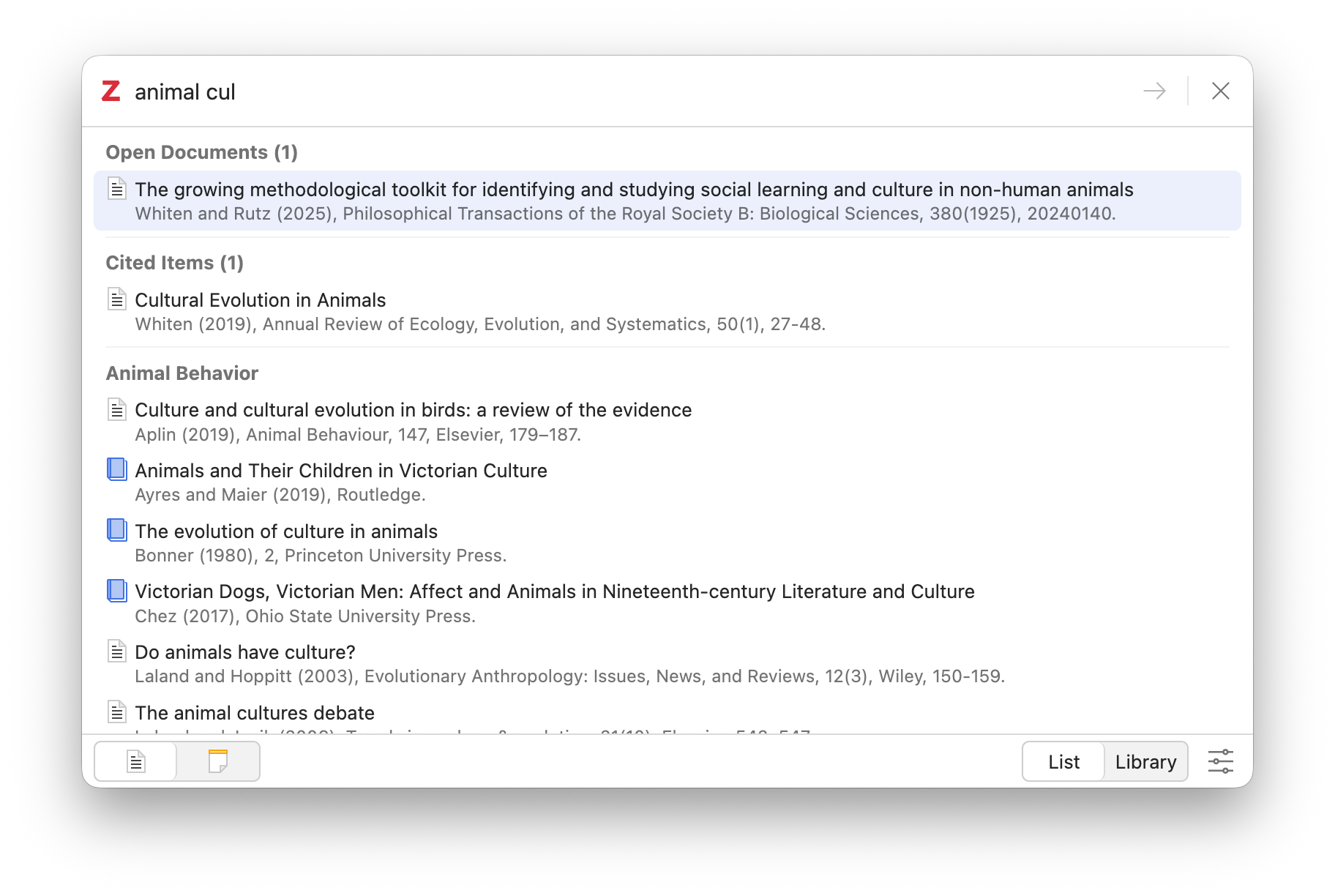
At the forefront of Zotero 8’s advancements is a completely redesigned citation dialog. This new unified interface replaces the previous disparate elements, including the "red bar" (classic citation dialog), the "red bar" (add citation dialog), and the "yellow bar" (add note dialog). This consolidation aims to create a more cohesive and efficient experience for users when inserting citations and notes into their documents.
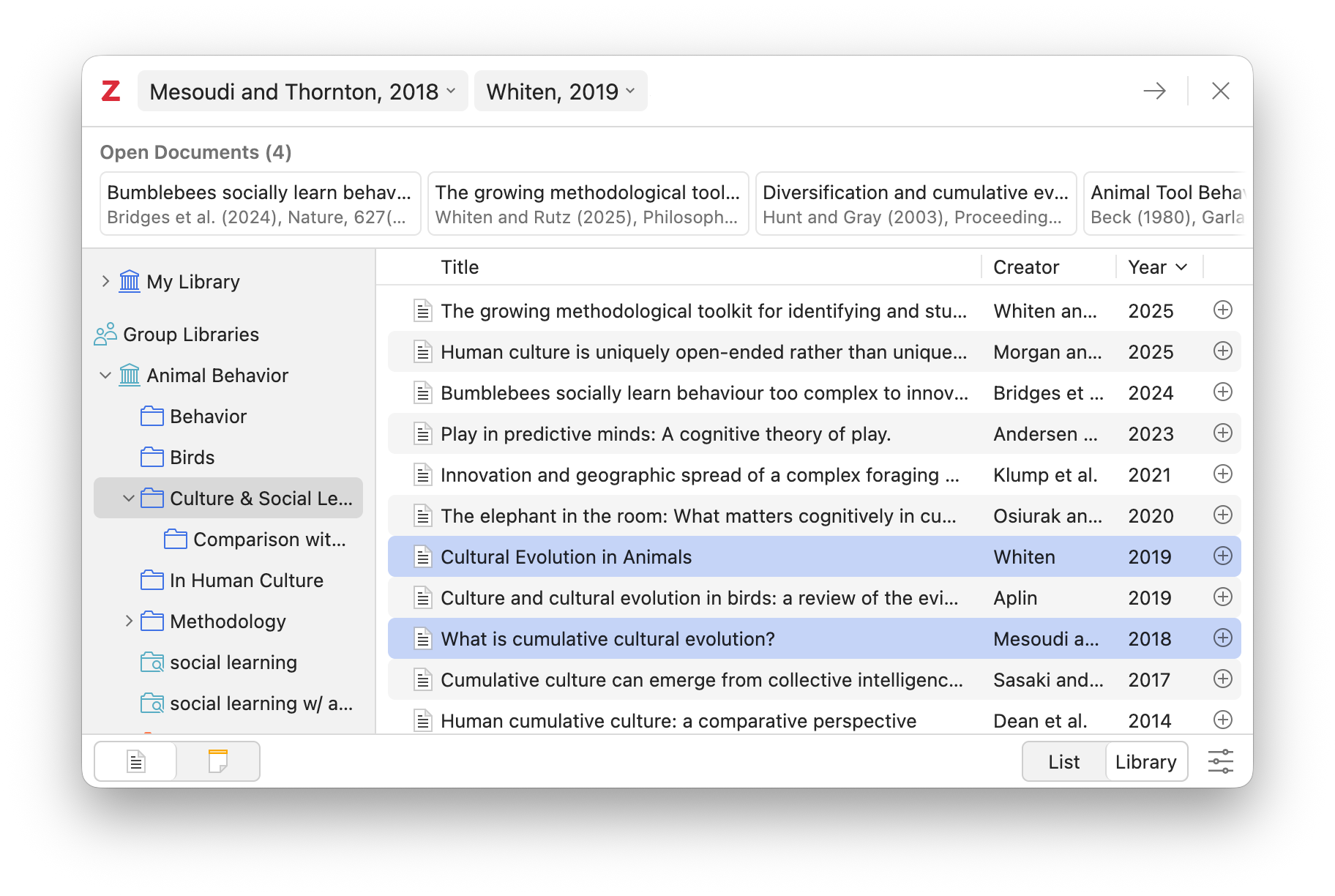
The redesigned dialog offers two distinct modes: List mode and Library mode. List mode provides a rapid search capability, allowing users to quickly locate citations across their entire Zotero library by title, creator, and year. In contrast, Library mode integrates a familiar library browser, enabling users to navigate and select items from specific libraries or collections. A single click facilitates seamless switching between these modes, crucially preserving any selected items or entered search terms. By default, the dialog will open in the last used mode, but users can customize this behavior through the application’s settings.
The update also enhances the functionality introduced in Zotero 7, which allowed for quick citation additions for selected items and open documents. These options are now readily accessible within both List and Library modes, ensuring that users can leverage these time-saving features regardless of their preferred citation insertion method.
Customization of individual citations has also been refined. Once an item is selected, clicking on its associated bubble provides immediate access to options for customizing citations with page numbers, prefixes, and other locators. A notable enhancement is the ability to add any locator directly from the search bar by typing its full or short name (e.g., "line 10" or "l. 10") after the citation and pressing Enter. This offers a more fluid and direct method for incorporating specific references.
Furthermore, the dialog now clearly distinguishes between adding citations and adding notes through dedicated buttons at the bottom left, mirroring the familiar "Add/Edit Citation" and "Add Note" buttons found within word processor plugins. For users transitioning from the classic dialog, it’s important to note the absence of a text field for manual citation edits. Zotero developers emphasize that direct manual edits within the document are generally discouraged. Instead, users are guided to utilize the citation dialog for all customization, ensuring that Zotero can effectively manage and update citations as research evolves. This design philosophy underscores Zotero’s commitment to maintaining the integrity and updateability of bibliographies.
Annotations Integrated into the Items List
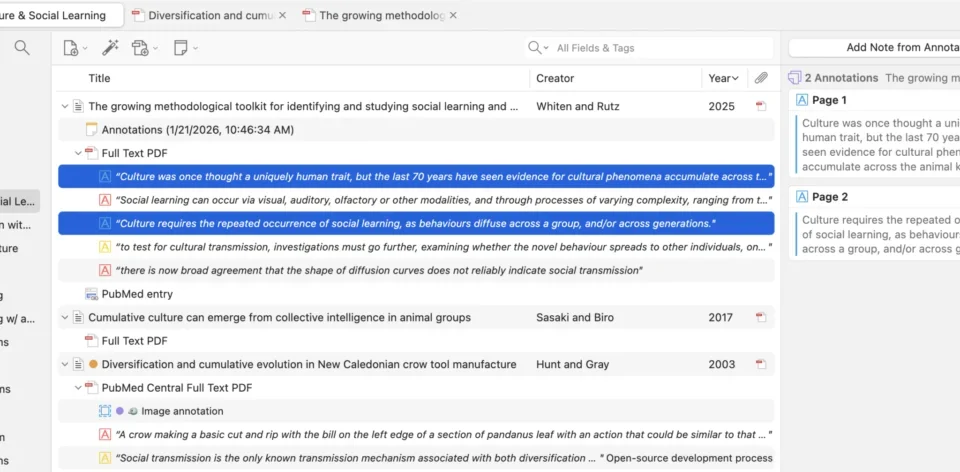
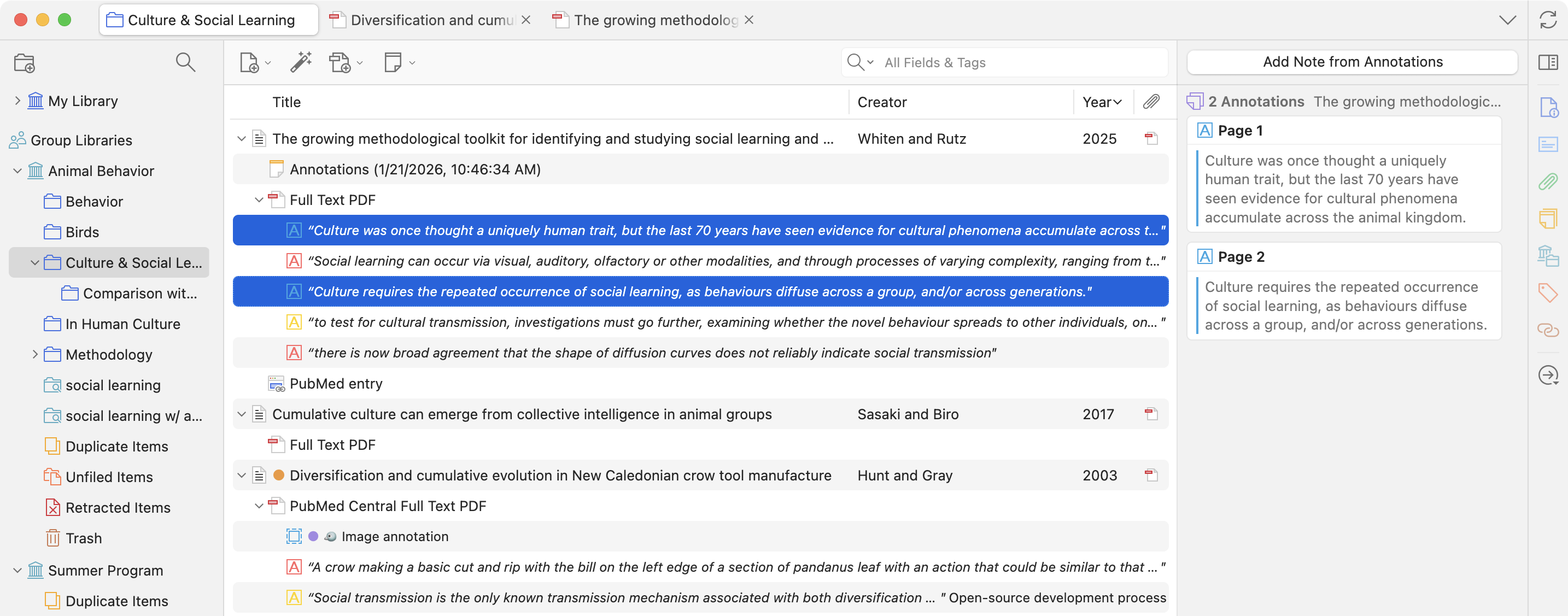
A significant improvement for users who heavily rely on annotating documents is the integration of annotations directly into the items list. PDFs, EPUBs, and webpage snapshots now display their associated annotations as sub-items under their parent attachments. This visual integration makes it substantially easier to review annotations across an entire library or collection, fostering a more comprehensive understanding of research materials.
The ability to search for annotations directly opens up new avenues for research organization. Users can now search for all annotations within a specific collection that contain a particular tag, and then efficiently create notes from these annotations or copy them to external text editors using the Quick Copy functionality. The Advanced Search feature has been expanded to include "Item Type is Annotation" for matching annotations, as well as "Annotation Text" and "Annotation Comment" conditions for pinpointing specific content within annotations. Assigning tags to selected annotations is now as straightforward as dragging them to the tag selector, mirroring the process for other item types. Selected annotations are also consolidated and displayed in the item pane, grouped by their top-level item, providing a clear hierarchical view.
Reader Enhancements: Themes and Appearance Customization
Zotero 8 introduces a new Appearance panel within the reader, offering quick access to view settings and, notably, support for reader themes. This panel provides per-document view settings such as scrolling preferences, spread displays, and split view options. The introduction of reader themes, however, applies globally to all documents, including previews in the item pane, and affects PDFs, EPUBs, and webpage snapshots.
The software now includes a selection of built-in themes, such as "Dark," "Snow," and "Sepia," alongside the ability for users to create custom themes by defining foreground and background colors. Zotero’s design simplifies theme creation by automatically adjusting other color elements based on the user’s primary choices, reducing complexity. Users can also set distinct themes for light and dark modes, offering further personalization.
These new themes replace the previous "Use Dark Mode for Content" option, which had a tendency to invert images in dark mode. Zotero 8 now opts for a more subtle darkening of images within dark themes. Images and ink annotations in the reader sidebar and note editor are also subject to this darkening effect, applied only when Zotero itself is operating in dark mode. For PDF pages composed primarily of images, such as scanned documents, Zotero attempts to apply themes by replacing whitish or dark colors with theme-appropriate hues. If this is not feasible, the page is slightly darkened. This enhancement aims to improve readability and visual comfort across a wider range of document types and user preferences.
Note-Taking in Tabs and Refined Reading Modes
The functionality for managing notes has been significantly improved with the introduction of note tabs. Users can now opt to open notes in tabs within the main Zotero window, in addition to the traditional separate windows. Notes opened in tabs occupy the entire window, featuring wide margins to enhance readability and provide a focused, distraction-free environment for note-taking.
By default, double-clicking a note in the items list will now open it in a tab. Alternative opening behaviors, such as opening in a new window, can be accessed via the context menu, and the default behavior can be adjusted in the General pane of the Zotero settings under the option "Open notes in new windows instead of tabs." Notes within tabs also benefit from a separate font size setting, accessible through the View menu.
Further enhancing the reading experience, Zotero 8 introduces a dedicated Reading Mode for webpage snapshots. This mode reformats snapshots to remove extraneous page elements, making content more digestible. Users can further fine-tune their reading experience by adjusting line height and other view options through the Appearance panel.
Accelerated Tab Management
Interaction with browser tabs has been made more efficient. The tabs menu has been reworked to facilitate faster keyboard navigation. Users can now invoke the menu at any time by pressing Ctrl/Cmd-; . Once open, the menu simultaneously accepts search input, up/down navigation, and row selection, eliminating the need to switch between different interaction modes. Users can begin typing the name of an open tab, and the list will dynamically narrow down, allowing for quick switching by pressing Enter/Return. Closing multiple tabs has also been streamlined; users can navigate between row close buttons using the up/down arrow keys and press the space bar to close a tab.
Continuous File Renaming for Enhanced Organization
A major organizational improvement in Zotero 8 is the implementation of continuous file renaming for attachments. The software now automatically synchronizes attachment filenames with their parent item metadata as changes are made, such as editing a title. Previously, while Zotero would rename files upon initial import, subsequent edits to metadata required manual intervention to update the attachment filename.
This new feature ensures that filenames remain consistent with bibliographic data, reducing the risk of disorganization. Users can configure which file types the renaming applies to via the General tab of Zotero settings. Upon upgrading, existing files that do not conform to the current naming format will not be automatically renamed. However, Zotero provides an option within settings to rename these files en masse. The software will also prompt users to rename all files if the filename format is altered. The "Rename File from Parent Metadata" option has been removed from the item context menu, as its function is now automated. If a filename deviates from the configured format, a "Rename File to Match Parent Item" button is available next to the filename in the attachment’s item pane for manual renaming.
Refined Attachment Titling and New Options
Building on Zotero 7’s efforts for more consistent attachment title handling, Zotero 8 further refines its renaming and titling logic. This update aims to preserve simpler, less redundant titles (e.g., "Full Text PDF" or "Preprint PDF") when titles were previously altered to match filenames. The system now better manages renaming and titling for multiple and/or non-primary attachments, aligning more closely with intended user workflows.
An option titled "Normalize Attachment Titles" has been added under Tools > Manage Attachments. This feature allows users to update older primary attachments whose titles match their filenames to adopt simpler titles, such as "PDF." While Zotero continues to recommend the default behavior of allowing the software to rename primary files and maintain filename consistency while using simpler titles in the items list, users who prefer to view filenames can now enable the "Show attachment filenames in the items list" option in the General pane of the settings.
Expanded Platform Support: ARM Linux
Zotero 8 marks a significant expansion in platform support with the introduction of a version specifically for Linux running on ARM64 devices. This includes a wide range of hardware, such as ARM-based Chromebooks, Apple Silicon Macs running Linux (via Linux VMs or Asahi Linux), and Raspberry Pis. This development is particularly impactful for users who previously faced challenges running Zotero on these architectures or relied on emulation.
User Interface and Connector Improvements
Beyond the major feature updates, Zotero 8 incorporates numerous user interface improvements designed to address common user requests and enhance overall usability. These refinements aim to create a more intuitive and efficient research environment.
The Zotero Connector, the browser extension for saving research materials, also receives notable enhancements. The save popup now supports tag autocompletion, allowing users to efficiently add existing tags from their Zotero library. Furthermore, users can now add notes to items directly within the Connector’s save popup, streamlining the process of capturing initial annotations and context as items are saved.
Faster Future Releases
In a significant strategic shift, Zotero developers are implementing a new release schedule designed to deliver future updates more rapidly. This change aims to shorten the development cycle and provide users with new features and improvements more frequently. More details on this new release cadence are available on the Zotero blog.
System Requirements and Availability
Zotero 8 requires macOS 10.15 or later, Windows 10 or later, or a Firefox 140-compatible Linux system. Users currently running Zotero can upgrade by navigating to Help > Check for Updates within the application. New users can download Zotero 8 directly from the official Zotero website.
The release of Zotero 8 represents a substantial evolution for the open-source reference management tool, offering a more integrated, efficient, and customizable experience for researchers across diverse platforms and workflows.